Schedules
With the schedules module you can create and manage automated tasks for your server. Schedule commands, broadcasts, backups, restarts, and more.
Overview
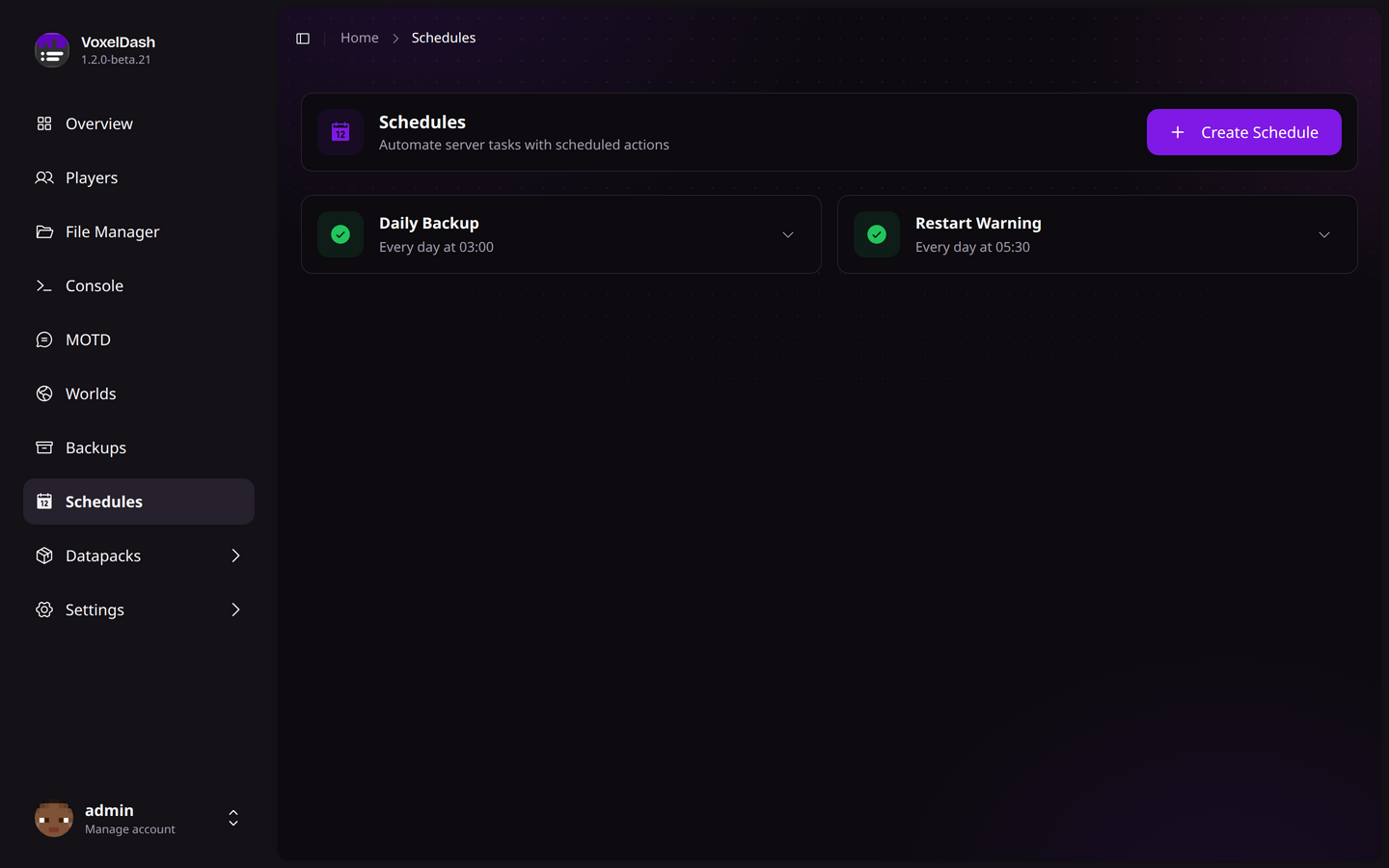
The schedules module allows you to automate recurring tasks on your server. Each schedule runs at a specified interval and can perform one or more actions.
Schedule List
The main view shows all configured schedules with:
| Column | Description |
|---|---|
| Name | A descriptive name for the schedule |
| Interval | How often the schedule runs |
| Next Run | When the schedule will execute next |
| Status | Enabled or disabled |
| Actions | Number of tasks in the schedule |
Creating a Schedule
To create a new schedule:
- Click Create Schedule
- Enter a name for your schedule
- Choose the interval type and time
- Add one or more actions
- Save the schedule
Interval Types
| Interval | Description |
|---|---|
| Hourly | Runs once per hour at a specific minute |
| Daily | Runs once per day at a specific time |
| Weekly | Runs once per week on a specific day and time |
Example Intervals
- Hourly at :30 - Runs at 1:30, 2:30, 3:30, etc.
- Daily at 03:00 - Runs every day at 3 AM
- Weekly on Sunday at 04:00 - Runs every Sunday at 4 AM
Available Actions
Add multiple actions to each schedule. They will execute in order:
| Action | Description | Input |
|---|---|---|
| Command | Execute a server command | The command to run |
| Broadcast | Send a message to all players | The message text |
| Backup | Create a server backup | Backup type selection |
| Reload | Reload the server | None |
| Stop | Stop the server | None |
| Kick All | Kick all players from the server | Kick reason message |
Action Examples
Auto-Backup Schedule (Daily at 3 AM):
- Broadcast: "Creating daily backup..."
- Backup: Worlds + Configs
Hourly Announcement (Hourly at :00):
- Broadcast: "Visit our website at example.com!"
Managing Schedules
Enable/Disable
Toggle schedules on or off without deleting them. Disabled schedules won't run until re-enabled.
Edit Schedule
Modify the name, interval, or actions of an existing schedule.
Delete Schedule
Remove a schedule permanently. This cannot be undone.
Task Management
Each schedule can contain multiple tasks (actions). You can:
- Add Task: Add a new action to the schedule
- Remove Task: Delete an action from the schedule
- Reorder Tasks: Change the execution order
Tasks execute sequentially in the order they appear. Make sure to order them logically (e.g., broadcast warning before kicking players).