File Manager
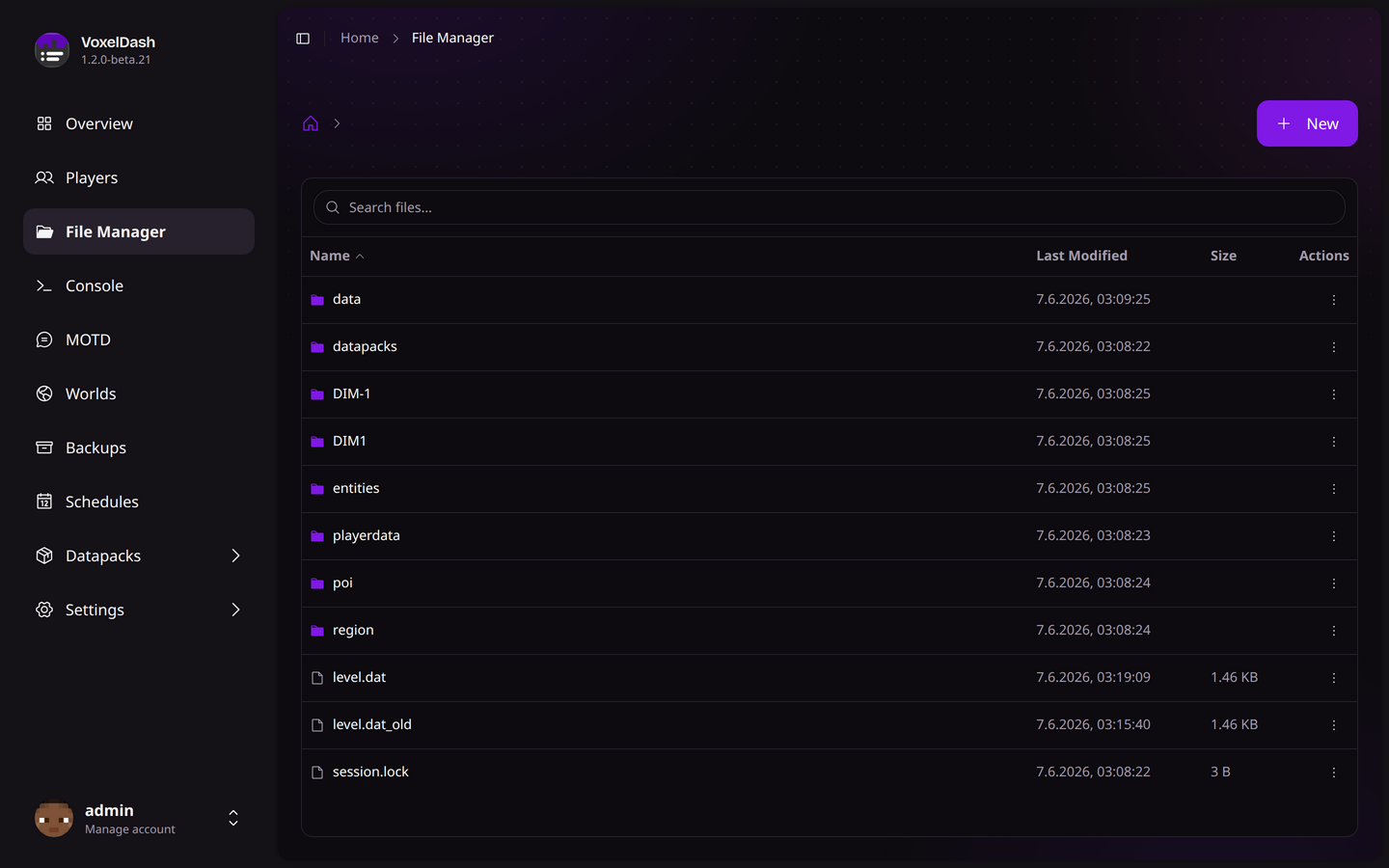
The file manager module is responsible for the management of the files of the server. It allows you to edit, delete, upload, download and view the content of each file of the server.
Navigating Files
The file manager displays all files and folders in your server directory. Click on folders to navigate into them, and use the breadcrumb navigation at the top to move back up the directory tree.
Viewing & Editing Files
Click on any file to open it in the built-in editor. VoxelDash supports syntax highlighting for many file types including:
- Configuration files (
.yml,.yaml,.properties,.toml,.json) - Scripts (
.sh,.bat,.ps1) - Code files (
.java,.js,.ts,.py) - Text files (
.txt,.md,.log)
After making changes, click Save to write your changes to disk.
Be careful when editing configuration files while the server is running. Some changes may require a server restart to take effect.
Uploading Files
To upload files to your server:
- Navigate to the target directory
- Click the Upload button
- Select one or more files from your computer
- Wait for the upload to complete
VoxelDash supports uploading large files by splitting them into chunks, so you can upload plugins, mods, or world backups without issues.
Downloading Files
To download a file:
- Right-click on the file
- Select Download from the context menu
The file will be downloaded directly to your browser's download folder.
File Operations
Right-click on any file or folder to access the context menu with these options:
| Action | Description |
|---|---|
| Rename | Change the name of the file or folder |
| Delete | Permanently remove the file or folder |
| Download | Download the file to your computer |
| Copy Path | Copy the file path to your clipboard |
Creating Files & Folders
Use the toolbar buttons to:
- New File: Create a new empty file
- New Folder: Create a new directory